Apple Pay tracking
Step-by-step: set up automatic capture of every Apple Pay payment in MonVa. Shown on a real iPhone (iOS 26).
After a one-time automation in the Shortcuts app, every contactless Apple Pay payment with a Wallet card automatically creates a pending expense in MonVa — you just confirm it on the Home screen. It runs quietly in the background.
Requires: iOS 17+, in-store NFC payment (not online, not Apple Watch/Mac), and MonVa Premium.
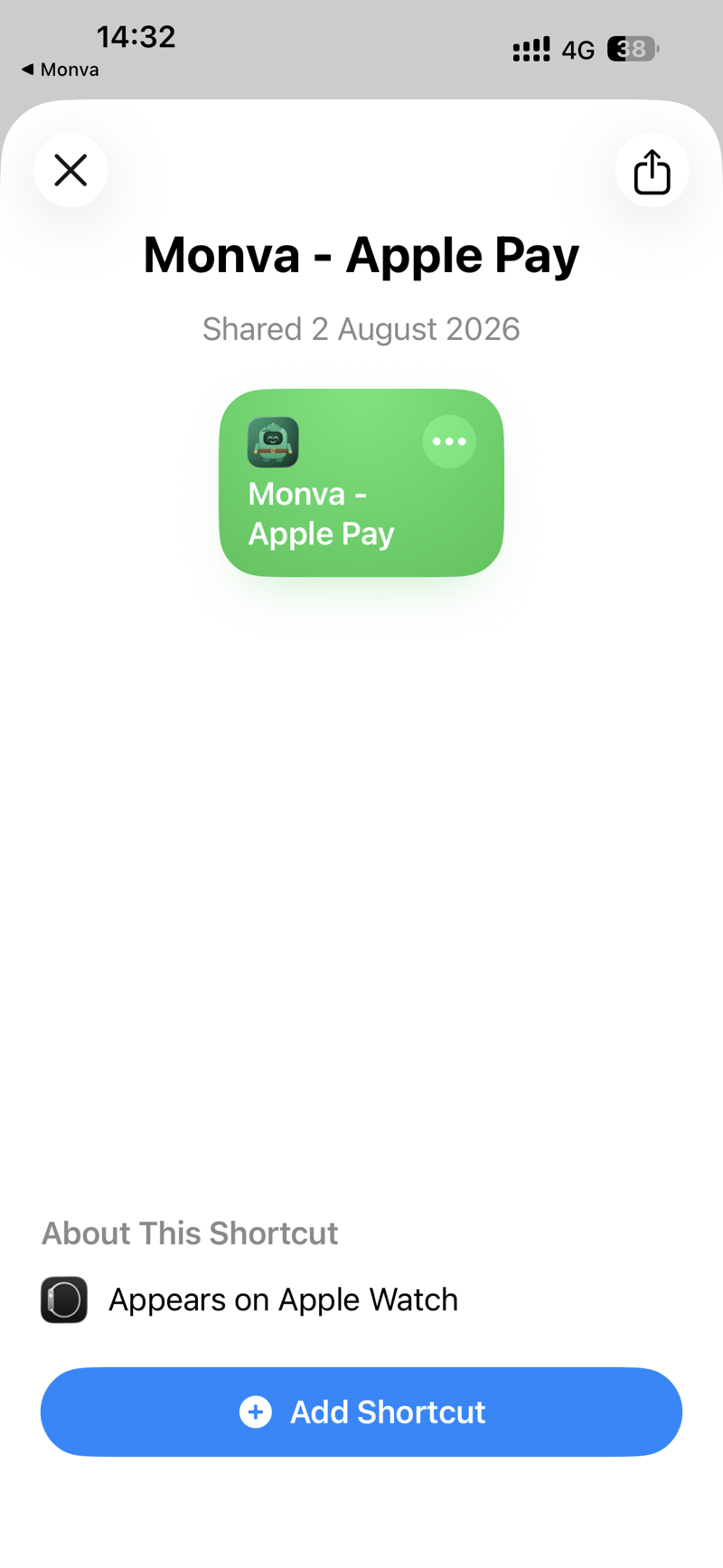
Step 1 — Import the “Monva - Apple Pay” shortcut
In MonVa: Settings → Premium → Apple Pay tracking → “Add the MonVa shortcut”. On the import screen, tap Add Shortcut.
It appears in your Shortcuts library:
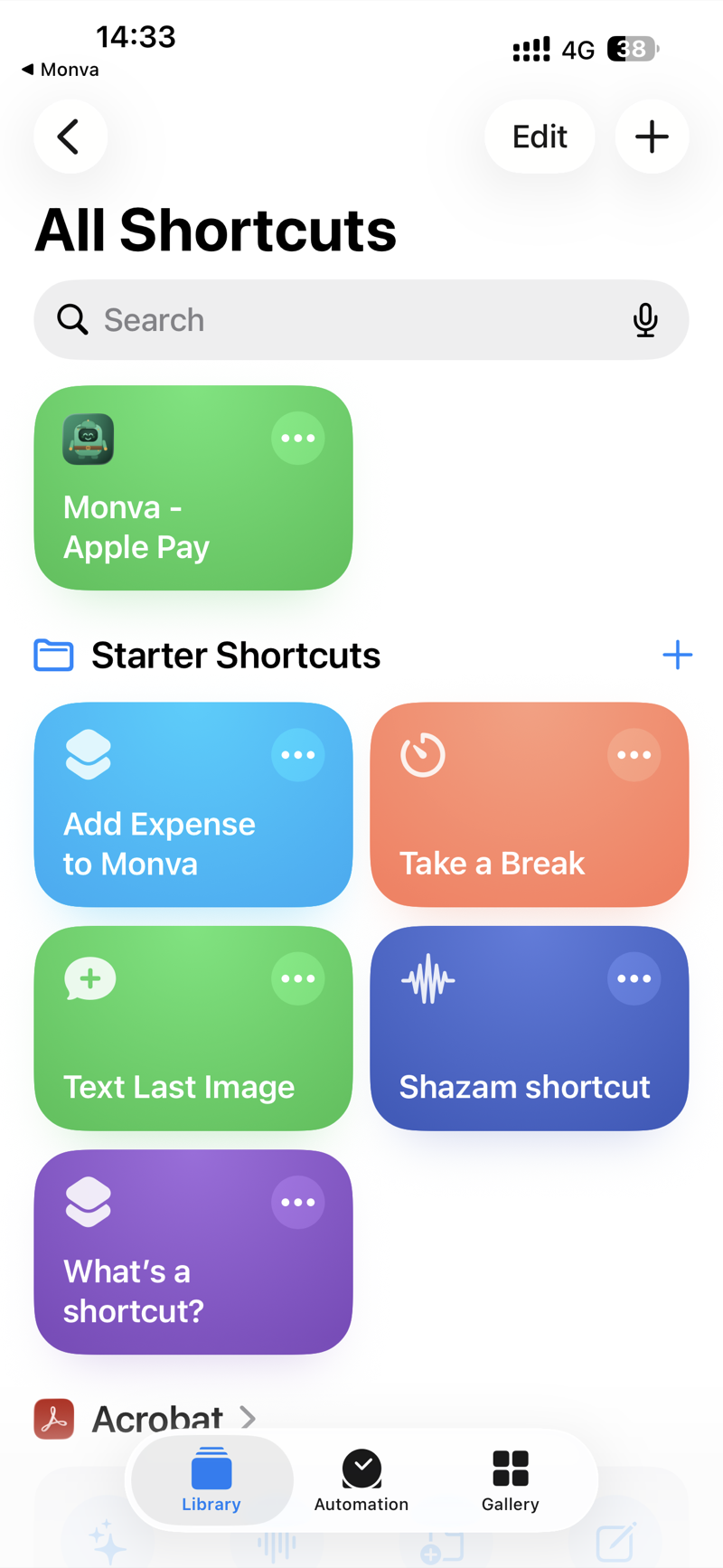
Step 2 — Create a new automation
In Shortcuts, open the Automation tab (bottom) and tap New Automation.
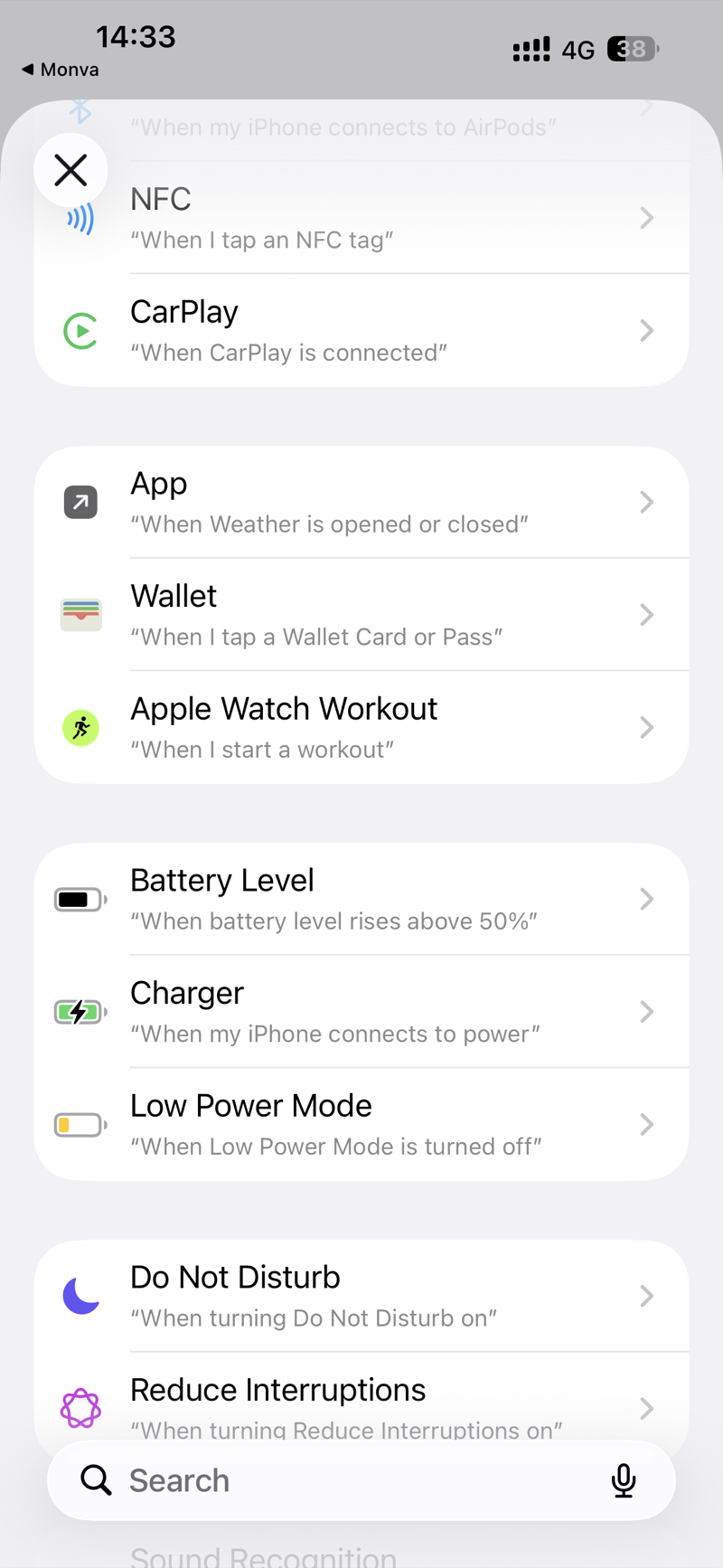
Step 3 — Pick the “Wallet” trigger
In the trigger list choose “Wallet” — “When I tap a Wallet Card or Pass” (this one, not “Transaction”).
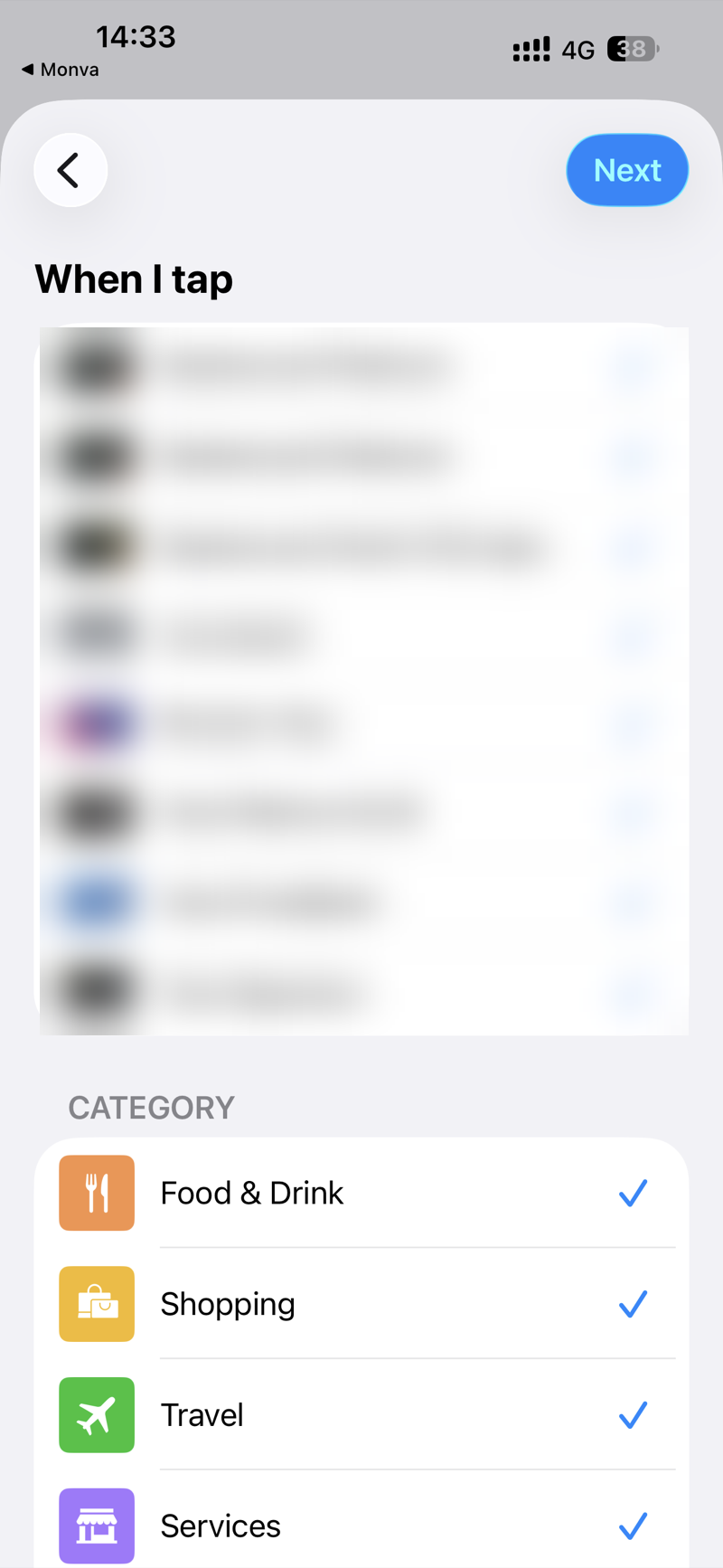
Step 4 — Select all your cards
On “When I tap”, check all your cards, then tap Next.
Step 5 — Run Immediately + action
- Turn on Run Immediately so payments are logged silently.
- Under Do, make sure “Monva - Apple Pay” is set.
Tap Done.
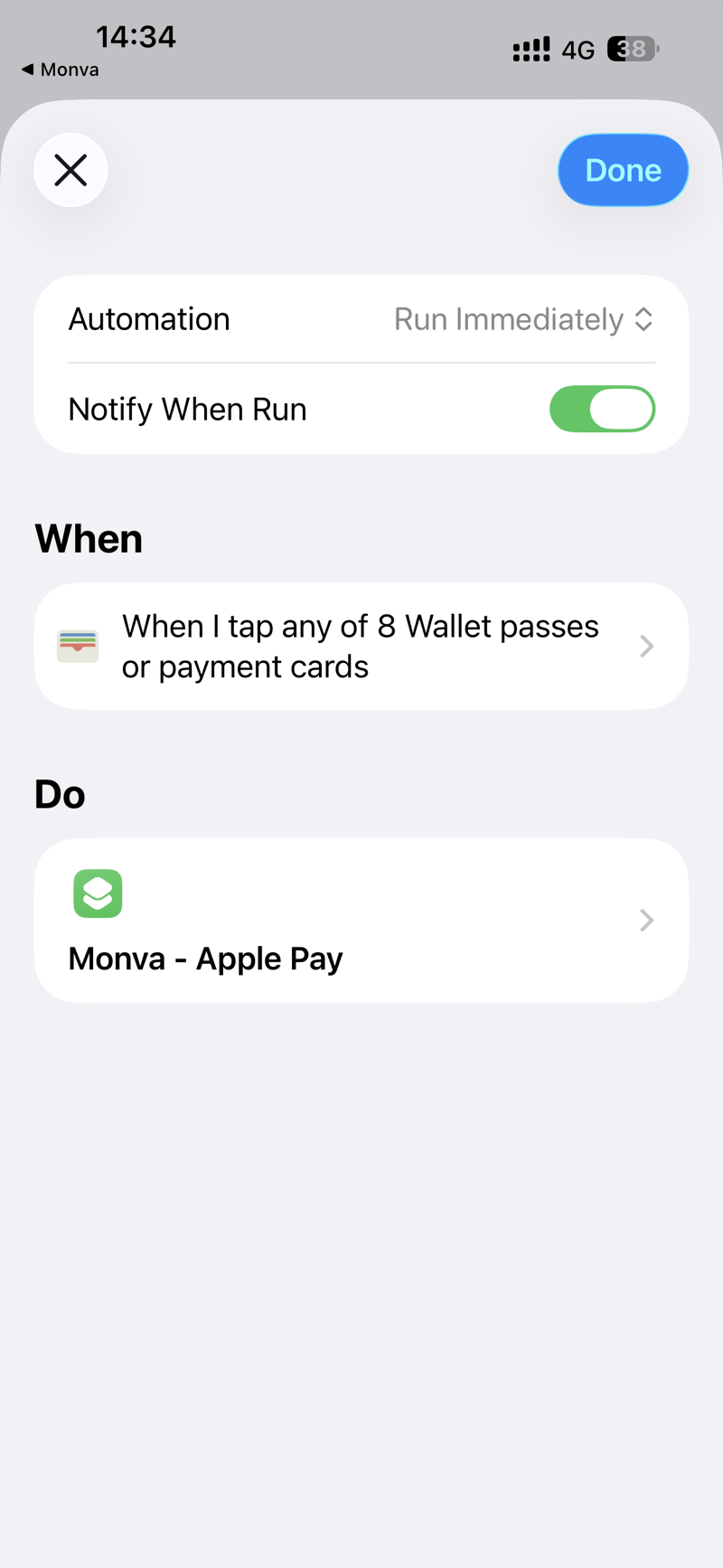
Done — the first payment
The next time you pay in a store, iOS asks once whether to share the transaction. Tap Always Allow — after that it captures silently in the background.
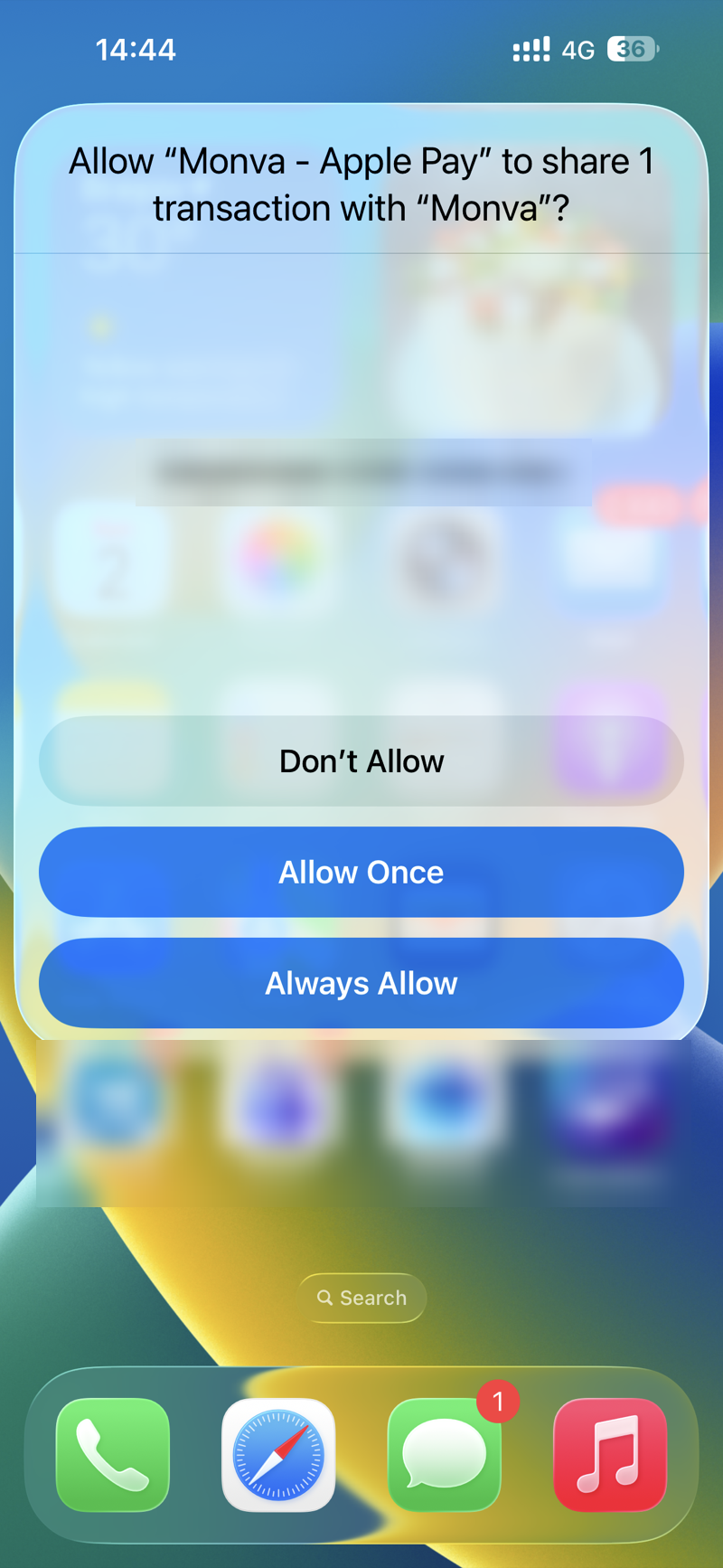
Every payment now creates a pending expense in MonVa. The “Apple Pay tracking” screen turns green Active once the first payment is captured (iOS exposes no way to read the automation, so that’s the only honest signal it works).
If it isn’t working
- The automation must use the Wallet trigger (not “Transaction”/“NFC tag”).
- Run Immediately on; Always Allow chosen on the first payment.
- Payment must be in-store (NFC) — online and Apple Watch aren’t caught.
- The automation’s action is “Monva - Apple Pay”.